 Felix Laurent
ElevenLabs Scribe turns speech from a video or audio file into text with speaker labels and timestamps. In independent tests by Artificial Analysis, the current Scribe model gets 1.9% of words wrong. That is one of the best results among 47 speech to text models. The free plan covers about 12 minutes of audio a month, enough to try it on a real recording.
This guide shows how to transcribe a video file, a YouTube link or your own voice in the ElevenLabs app. It then covers editing, exporting captions and getting a cleaner transcript. For the latest model update, see our Scribe news story.
What you need before you transcribe
All you need is an ElevenLabs account and a recording. Scribe accepts video in MP4, MOV, AVI and MKV, and audio in MP3, WAV and FLAC. A single file in the app can be up to 3 GB, which covers several hours of video.
The free plan includes 10,000 credits a month, which ElevenLabs' pricing table converts to about 12 minutes of transcription. The $6 Starter plan covers about an hour and a half, and the $22 Creator plan about six hours. Through the API, transcription costs $0.20 per hour of audio.
Recording quality matters more than any setting. Background noise, music under speech and two people talking at once all raise the error rate. If you record an interview yourself, give each speaker a separate microphone and keep the room quiet.
Think about privacy before you upload. Interviews with sources, medical calls and internal meetings may contain data you should not share. ElevenLabs offers a zero retention mode and data storage in the EU, India or Singapore, but only to enterprise customers.
ElevenLabs lists more than 90 supported languages, and Scribe detects the spoken language on its own. With the account and the file ready, the transcription itself takes a few clicks.
How to transcribe a video file with ElevenLabs Scribe
Open the Speech to text page in the ElevenLabs app. The top block says "Add audio files to transcribe" and offers four ways to start: Upload, URL, a folder button and a microphone.
- Click Upload, or drag the video file onto the page.
- Check the language. "Auto-detect language" works for most recordings, but picking the language yourself helps with short clips and strong accents.
- Open Settings to turn on audio event tags and add keyterms (both are covered below).
- Click the arrow button on the right to start the transcription.
Long files do not take long. ElevenLabs splits recordings over eight minutes into parts and processes them in parallel. In Artificial Analysis tests, Scribe transcribed 74 seconds of audio for every second of processing. An hour of video comes back in under a minute.
The finished transcript appears in the Transcriptions list on the same page. Each line carries a speaker label and a timestamp, and the video does not need to be downloaded anywhere else. The same flow works when the video lives on YouTube instead of your disk.
How to transcribe a YouTube video by link
You do not have to download a YouTube video to transcribe it. Click URL on the Speech to text page and paste the link. ElevenLabs says it fetches the audio straight from the link, with no download or conversion on your side.
The rest works like a file upload: pick the language, set the options and start. The result has the same speaker labels and timestamps, so you can turn a lecture, a podcast episode or an interview into text or captions.
Transcribing a video you do not own is fine for notes and research. Publishing that transcript or reusing it as captions on your own channel needs the creator's permission. Here is what a Scribe transcript of a real interview looks like.
Example: a 46-second podcast clip transcribed by Scribe
To show the result, we cut a 46-second excerpt from the Cheeky Pint podcast and uploaded it to Scribe. In it, Sam Altman argues that running AI models on home computers wastes the world's limited supply of DRAM. The player below starts at the same moment, 28:59.
The excerpt comes from the episode Why Sam Altman is against a single superintelligence, published on October 29, 2026.
We exported the transcript as SRT, and the clip took a few seconds to process. Here is the full SRT file, unedited:
Scribe caught a one-tenth-of-a-second "Um" at the very start and marked the cut-off "people--" with a dash before Altman restarts the sentence. Later in the clip it spelled "DRAM" correctly and wrote "5%" as digits, without any keyterms. It also kept every "like" and the false start "And, and somehow everyone's", which is what a verbatim transcript should do. If you need clean quotes, the API option no_verbatim removes such fillers.
One block shows why captions need a review pass. The fourth caption runs from 13.6 to 25.9 seconds, over 12 seconds of text on screen at once. Splitting it in the editor before exporting SRT keeps the subtitles readable.
The clip has one speaker, and Scribe kept every line under the same label, "Speaker 0". In the editor, renaming it to "Sam Altman" takes one click, and the new name carries into every export.
How to transcribe speech from your microphone
The microphone button on the Speech to text page records your voice and transcribes it like any other file. It suits voice notes, drafts you dictate and quick tests. For dictation, speak at a steady pace and finish your sentences, since Scribe places punctuation from your intonation. A headset microphone picks up far less room noise than the one built into a laptop.
For live speech, use Transcribe live in the Scribe Live block at the bottom of the page. It writes text while you speak, with no upload at all. ElevenLabs says the live model labels speakers and detects when a person has finished a turn. For ElevenLabs' live model, Artificial Analysis measured 0.08 seconds from the end of speech to the final text.
Live transcription is handy for meetings, lectures and interviews you want to follow as text in real time. Whichever route you choose, the result lands in the same editor.
How to edit a transcript and fix speaker labels
Click the transcript in the Transcriptions list to open the editor. Clicking any word plays the audio from that point, so you can check a doubtful passage in a second.
In the editor you can:
- fix a misheard word in place;
- split or merge segments when a line is cut in the wrong spot;
- move a line to a different speaker when the labels mix up two voices;
- rename speakers with the "edit" button next to "Speakers", so "Speaker 1" becomes a real name.
Scribe tells up to 32 speakers apart automatically. Names, numbers and technical terms are where you should look first, since those mistakes change the meaning. A quick pass over them usually takes a few minutes for an hour of speech.
Human transcription is still more accurate, but it is slow and costs far more. Guides estimate four to five hours of typing per hour of audio, so a review pass over an AI transcript is the practical middle ground. Once the text reads right, it is ready to leave the app.
How to export a transcript and captions
Click Export in the top right of the transcript. ElevenLabs offers seven formats, and each fits a different job:
- TXT, DOCX or PDF for reading, quoting and sharing;
- SRT or VTT for captions on YouTube, social video and video editors;
- JSON for developers who want every word with its timing;
- HTML for a transcript that goes straight onto a web page.
SRT and VTT carry the same text and timings in slightly different syntax. SRT is the older format that almost every editor and platform reads. VTT was made for web players and supports simple styling, such as position on screen. When in doubt, export SRT.
To add subtitles to a video, export SRT and upload it to YouTube in the subtitles section of the video. Premiere Pro, DaVinci Resolve and CapCut all import SRT files as a caption track. VTT does the same job for web players.
Which format you export depends on what the transcript is for.
How to use Scribe transcripts for interviews, podcasts and lectures
The same transcript serves different jobs, and each needs a slightly different setup.
- Interviews. Rename the speakers first, then check every quote you plan to publish against the audio. Journalists usually keep the original file next to the transcript for that reason.
- Podcasts. Export SRT for the video version and DOCX for show notes. The timestamps make it easy to list chapters with the minute each topic starts.
- Lectures and courses. Add the subject's terms as keyterms before you upload. Export VTT for the course player and PDF for students who prefer to read.
- Meetings. Scribe gives you the text, not a summary. Paste the transcript into a chatbot to pull out decisions and action items, and keep the speaker labels so each task has an owner.
- Video for social media. Export SRT, trim lines that run too long, and burn the captions in with your editor. Most viewers watch short clips with the sound off.
Whatever the job, a few problems come up again and again.
Fixing common transcription problems
Most bad transcripts trace back to a handful of causes, and each one has a fix in the app.
- Wrong language. Auto-detection can trip on a short intro in another language. Set the language yourself and run the file again.
- Misspelled names. Add them as keyterms, spelled the way you want them to appear, and transcribe again.
- Two voices under one label. Reassign the lines in the editor. For recordings you control, separate microphones prevent the problem.
- Missing words under music. Lower the music in your editor before upload, or upload the voice track alone if you have it.
- Captions that run too long. Split long segments in the editor before you export SRT, so each caption stays readable on screen.
With the problems fixed, the remaining question is how accurate the transcript was to begin with.
How to get a more accurate transcript
Accuracy starts with settings, and two in the app make the biggest difference. Keyterms tell Scribe how to spell names, brands and jargon it would otherwise mishear. You can add up to 1,000 of them, such as a guest's surname, a product name or an acronym. On the API, keyterms add a small surcharge on top of the base price.
Tag audio events marks laughter, applause, music and other sounds in the text, such as "(laughter)". It helps with captions for viewers who cannot hear the audio. It also explains pauses in an interview transcript.
The rest of the accuracy comes from the recording and a few habits:
- set the language yourself for short clips or recordings with heavy accents;
- cut long music intros and silence before upload, since silence is billed too;
- keep speakers on separate microphones when you can;
- check names, numbers and quotes against the audio before you publish.
How much is left to fix depends on the model underneath. Artificial Analysis tests speech to text models on agent conversations, parliament speeches and earnings calls, and reports the share of words each one gets wrong.
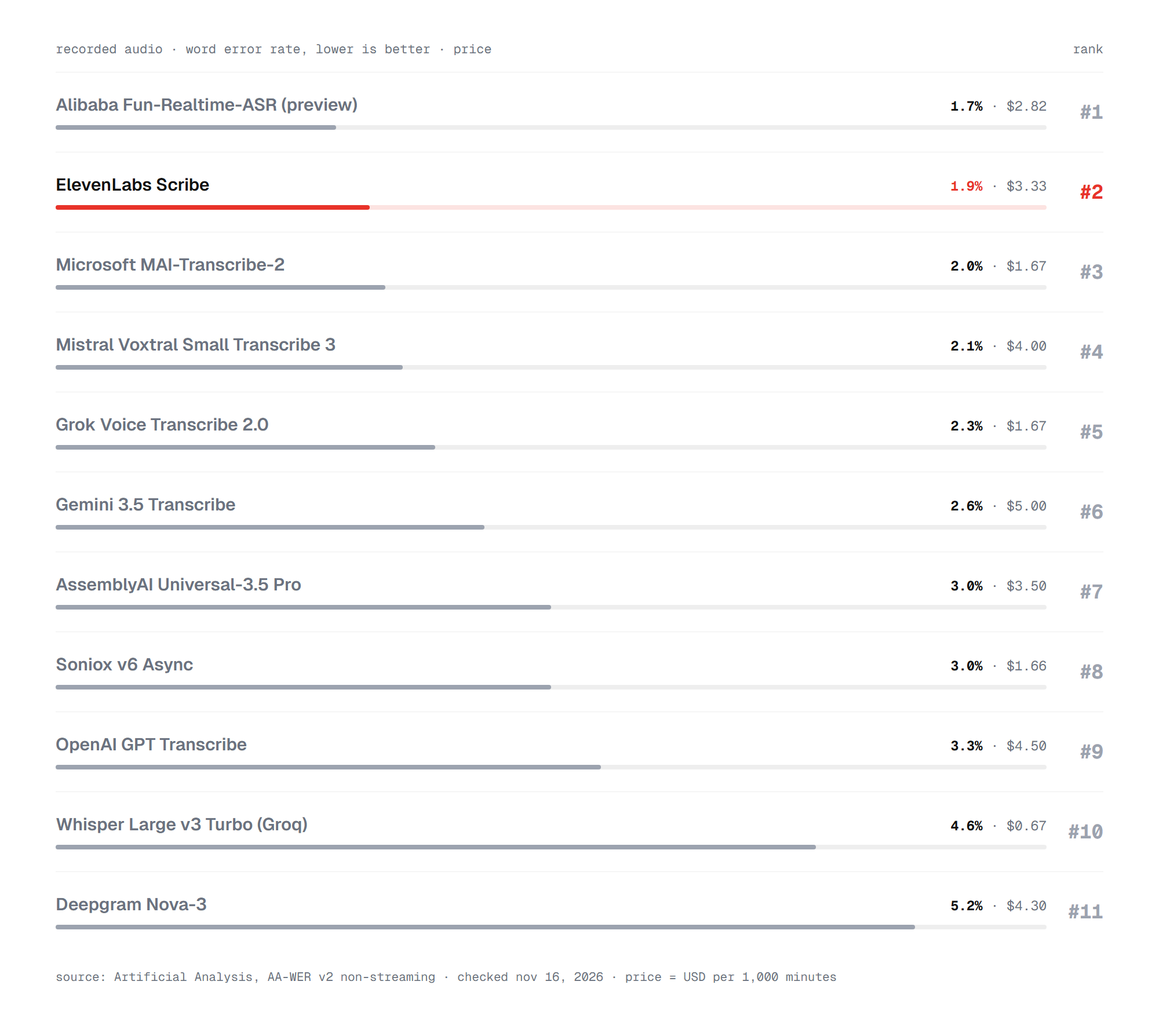
The current Scribe model scores 1.9%, about two wrong words in every hundred. Only Alibaba's Fun-Realtime-ASR preview does better, at 1.7%. OpenAI's GPT Transcribe sits at 3.3%, and the open Whisper Large v3 Turbo at 4.6%. For an hour-long interview of about 9,000 words, that gap means roughly 170 errors to fix instead of 410. Language and accent move these numbers more than anything else.
How Scribe handles languages and accents
ElevenLabs lists more than 90 languages for Scribe, and the app detects the spoken language on its own. ElevenLabs reports the biggest accuracy gains of the latest update in German and Spanish, with English close behind. Smaller languages work too, but with more errors, so plan a longer review pass.
Accents matter less than audio quality. A clear recording of a strong accent usually transcribes better than a muffled recording of a neutral one. If Scribe keeps mishearing the same word, add it as a keyterm instead of fixing it by hand in every file.
Recordings that switch languages are the hard case. In the app, set the language that dominates the recording. Through the API, secondary_language_codes tells Scribe which second language to expect. Developers have a few more options like that.
How to transcribe many files with the ElevenLabs API
The app suits single recordings. For hundreds of files, the ElevenLabs speech to text API does the same job from a script. You send a file, or a link in the source_url parameter, and get back JSON with the text, each word's timing and the speaker labels.
A few API options are missing from the app:
webhookreturns at once and delivers long transcripts to your server when they are ready;entity_detectionandentity_redactionfind and mask names, phone numbers and card numbers;secondary_language_codeshelps with recordings that switch between two languages;numbers_formatwrites numbers as digits or as words.
The API bills $0.20 per hour of audio, and the ElevenLabs docs list the current Scribe model ID to use in your requests. Price is also where Scribe faces its main rivals.
How much Scribe costs compared with other tools
At $0.20 per hour, Scribe costs $3.33 per 1,000 minutes of audio through the API. Microsoft's MAI-Transcribe-2 scores 2.0% in the same tests at about half the price. Whisper Large v3 Turbo on Groq costs $0.67 per 1,000 minutes at 4.6% errors. Its open weights can also run free on your own hardware.
For one interview a week, the free plan or the $6 Starter plan is enough, and the price gap does not matter. For thousands of hours a month, a cheaper model can save real money if you only need plain text. Scribe's case is the full package: the editor, speaker labels, seven export formats and keyterms in one place.
So how should you transcribe video with Scribe?
Upload the file or paste a YouTube link on the Speech to text page, set the language and add keyterms for names and jargon. Review names and numbers in the editor, rename the speakers, then export TXT or DOCX for reading and SRT for captions. That workflow covers most interviews, podcasts, lectures and meetings in a few minutes.
Use Transcribe live when you need text while people are still speaking, and the API when the files come in hundreds. With about two errors per hundred words, Scribe leaves little to fix on a clean recording. Most of the remaining work comes from noise, accents and names, which good audio and keyterms address.
FAQ
These questions come up most often when people transcribe video or audio with ElevenLabs.
Is ElevenLabs Scribe free?
Yes, within limits. The free plan includes 10,000 credits a month, which covers about 12 minutes of transcription. Paid plans start at $6 a month.
Can Scribe transcribe a YouTube video?
Yes. Click URL on the Speech to text page and paste the YouTube link. ElevenLabs fetches the audio from the link, so you do not need to download the video.
Which formats can I export a transcript in?
TXT, DOCX, PDF, SRT, VTT, JSON and HTML. Use SRT or VTT for captions and DOCX or PDF for documents.
How many languages does Scribe support?
ElevenLabs lists more than 90 languages, and Scribe detects the language automatically. You can also set it yourself for better results on short or accented recordings.
How accurate is ElevenLabs Scribe?
In Artificial Analysis tests, the current Scribe model gets 1.9% of words wrong. That ranks it second among 47 speech to text models.
Can Scribe transcribe a video longer than an hour?
Yes. The app accepts files up to 3 GB, and Scribe splits long recordings into parts that it processes at the same time. An hour of audio usually comes back in under a minute.
Does Scribe add punctuation and speaker names?
Scribe adds punctuation and labels each speaker as "Speaker 0", "Speaker 1" and so on. Rename the labels in the editor, and the names carry into every export.
What is the difference between Scribe and Scribe Live?
Scribe transcribes finished recordings that you upload or link. Scribe Live writes text while someone is speaking into the microphone. It returns the final text a fraction of a second after the speaker stops. Both label speakers, and both results open in the same editor.